On this page
delete
Delete Client Secret
Revoking and managing client secret access
Deleting Client Secrets
Deleting a client secret immediately revokes access and cannot be undone.
Revocation Process
-
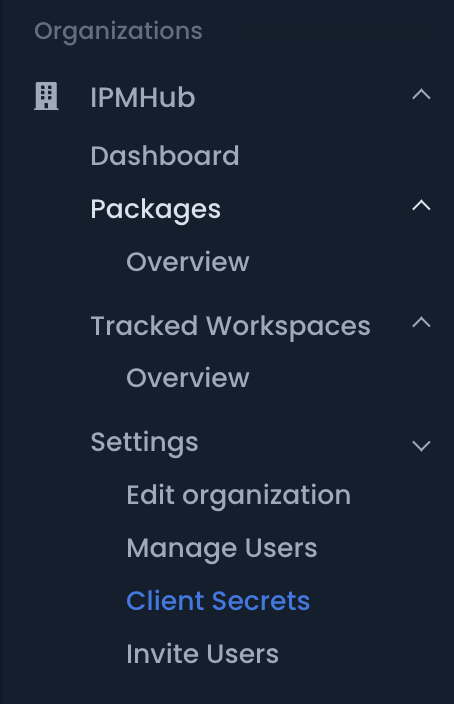
Navigate to your organization’s settings:
- Go to Organizations
- Select your organization
- Click Settings
- Select Client Secrets
Click the image to enlarge
-
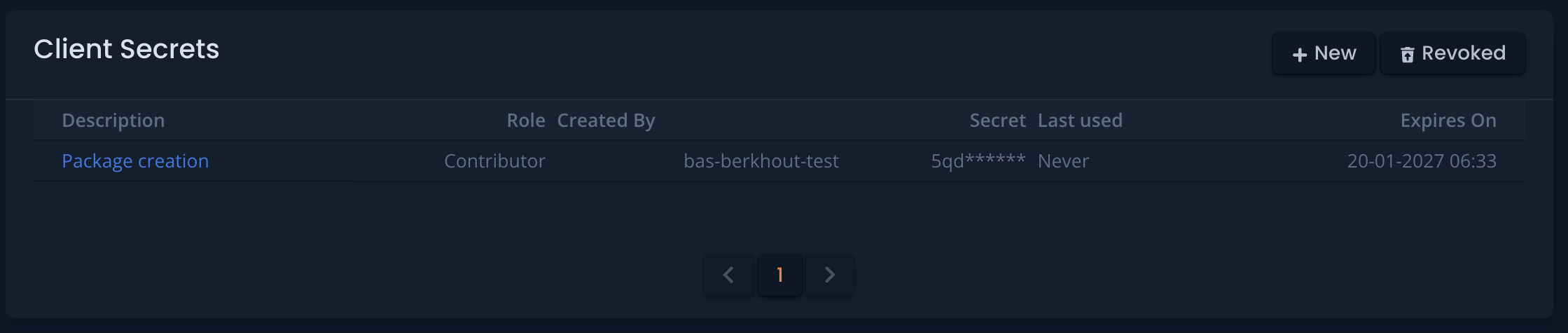
Locate the client secret to revoke
Click the image to enlarge
-
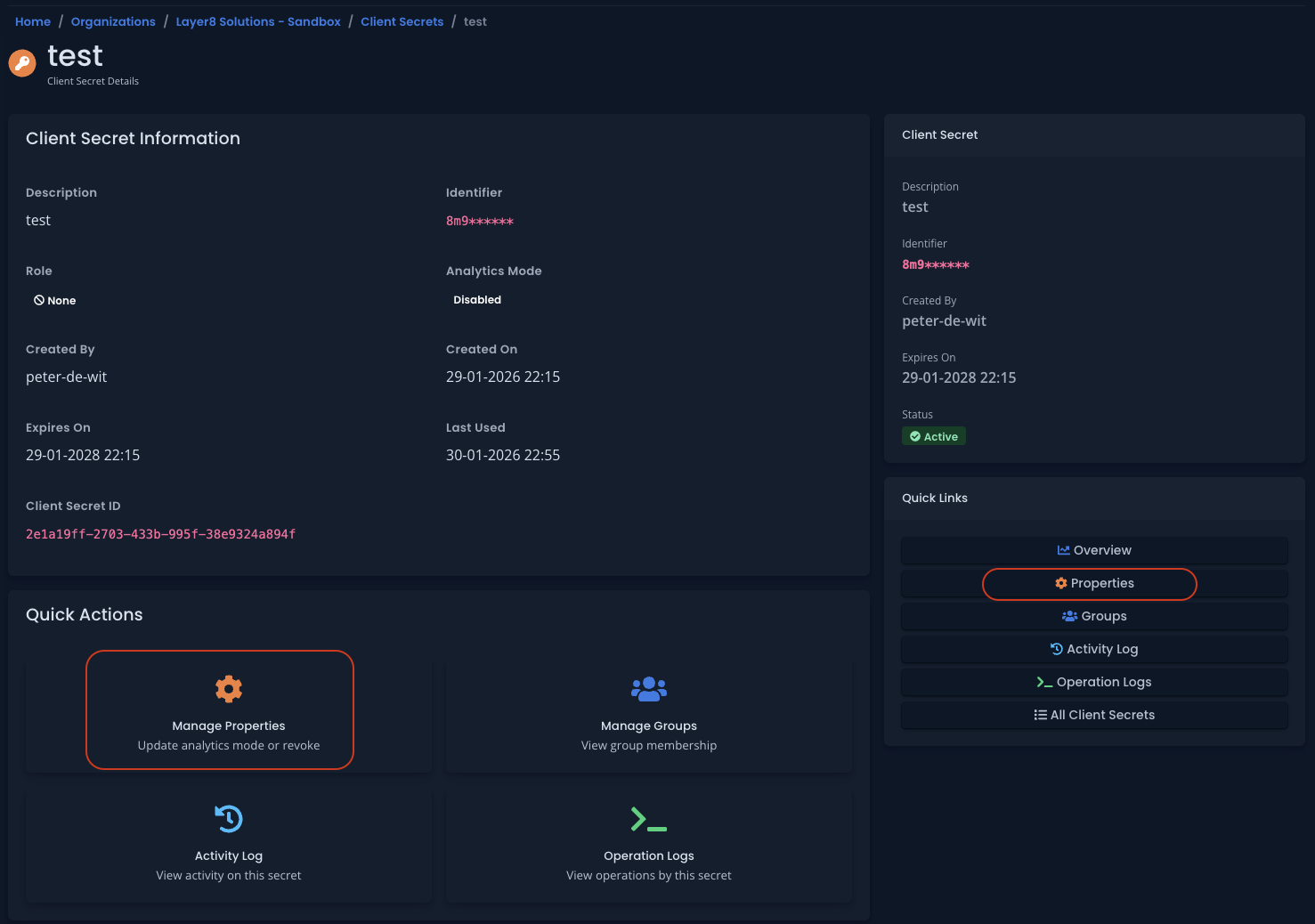
Open the client secret details and go to Properties
Click the image to enlarge
-
Click Revoke Client Secret
-
Confirm the revocation by typing
revokeand by clicking the revoke button.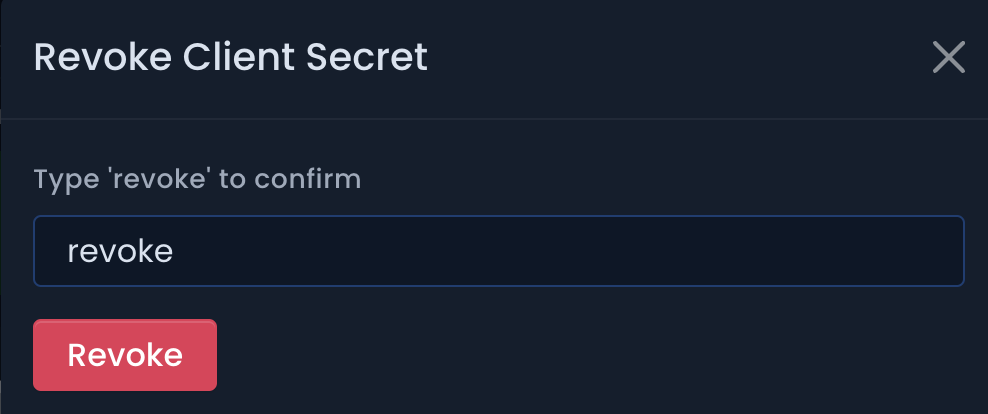
Click the image to enlarge
The updated interface changes where revocation is performed (Properties page), but revocation behavior itself is unchanged.
Important Considerations
- Revocation is immediate and permanent
- Revoked secrets cannot be reactivated
- All automated processes using the secret will fail
- Create a new secret if needed
Before Deleting
Before revoking a client secret:
- Identify all automation using the secret
- Plan for service disruption
- Create and configure a replacement secret if needed
- Update automation with new secret before deleting the old one
When to Delete
Common scenarios for client secret deletion:
- Security concerns or potential compromise
- Project completion
- Automation changes
- Regular secret rotation
- Approaching expiration
After Deletion
After revoking a client secret:
- Verify automation is updated with new credentials
- Remove the old secret from all automation configurations
- Document the change
- Monitor systems for any missed dependencies
Keep track of where client secrets are used to make rotation and revocation smoother.
Best Practices
- Regularly audit active client secrets
- Document secret usage and dependencies
- Plan secret rotation before expiration
- Test automation with new secrets before revoking old ones
- Remove unused secrets promptly
Never delete a client secret without first ensuring all dependent systems are updated.