Package Feed
Subscribe to package version updates via a feed URL
Package Feed
The Package Feed gives you a live feed URL that delivers update notifications whenever a new version of a package is published. Subscribe using any feed reader or automation tool to stay informed of new releases in real time. Feed data can be retrieved as RSS or JSON (the Type), and the content within each entry can be rendered as HTML, Markdown, or plain text (the Format), allowing integration with a wide range of tools and workflows.
Prerequisites
The prerequisites for using the Package Feed depend on whether the packages you want to subscribe to are public or private.
Private packages require a one-time setup before a feed URL can be generated:
- A Signing Key must already be generated for your organization. This is done once from the Edit organization pane. See Edit organization → Signing Key for instructions.
Generating a Signing Key
Before you can create an Access Signature for private packages, your organization must have a signing key. This is a one-time operation performed from the Edit organization pane.
Refer to Edit organization → Signing Key for the full steps. Once the key has been generated for your organization, you do not need to repeat this step.
Creating an Access Signature
Access Signatures are created using a four-step wizard. To open the wizard, navigate to the Package Feed section within your organization settings and start a new Access Signature.
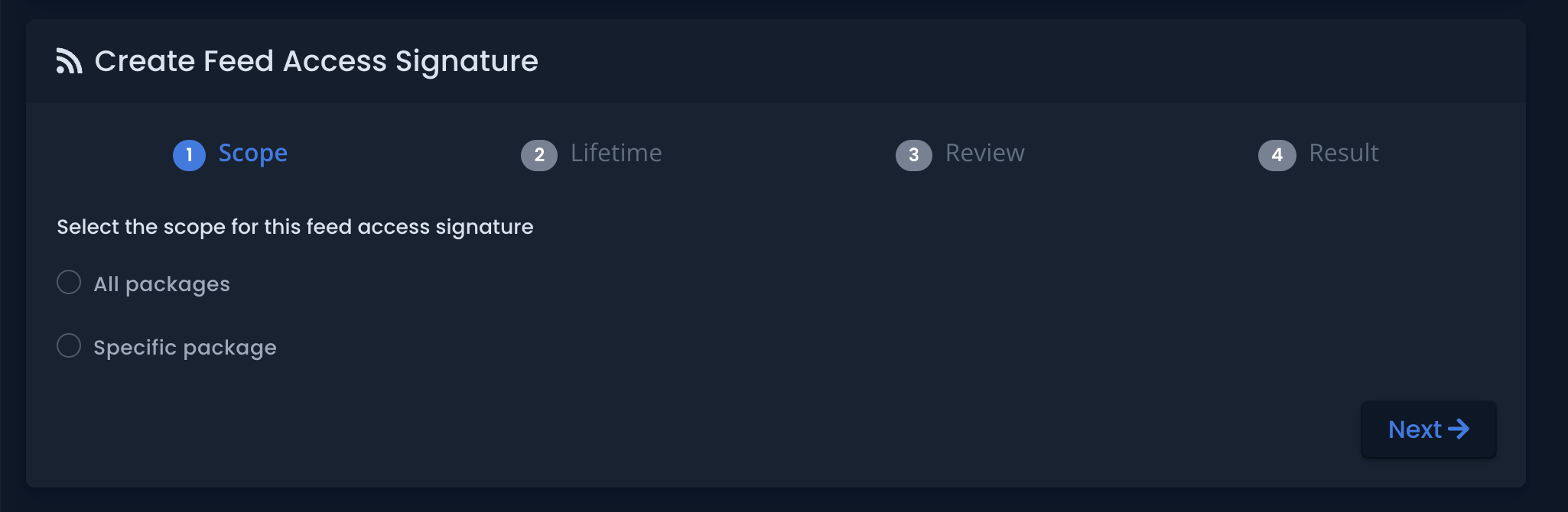
Wizard Step 1 — Scope
Click the image to enlarge
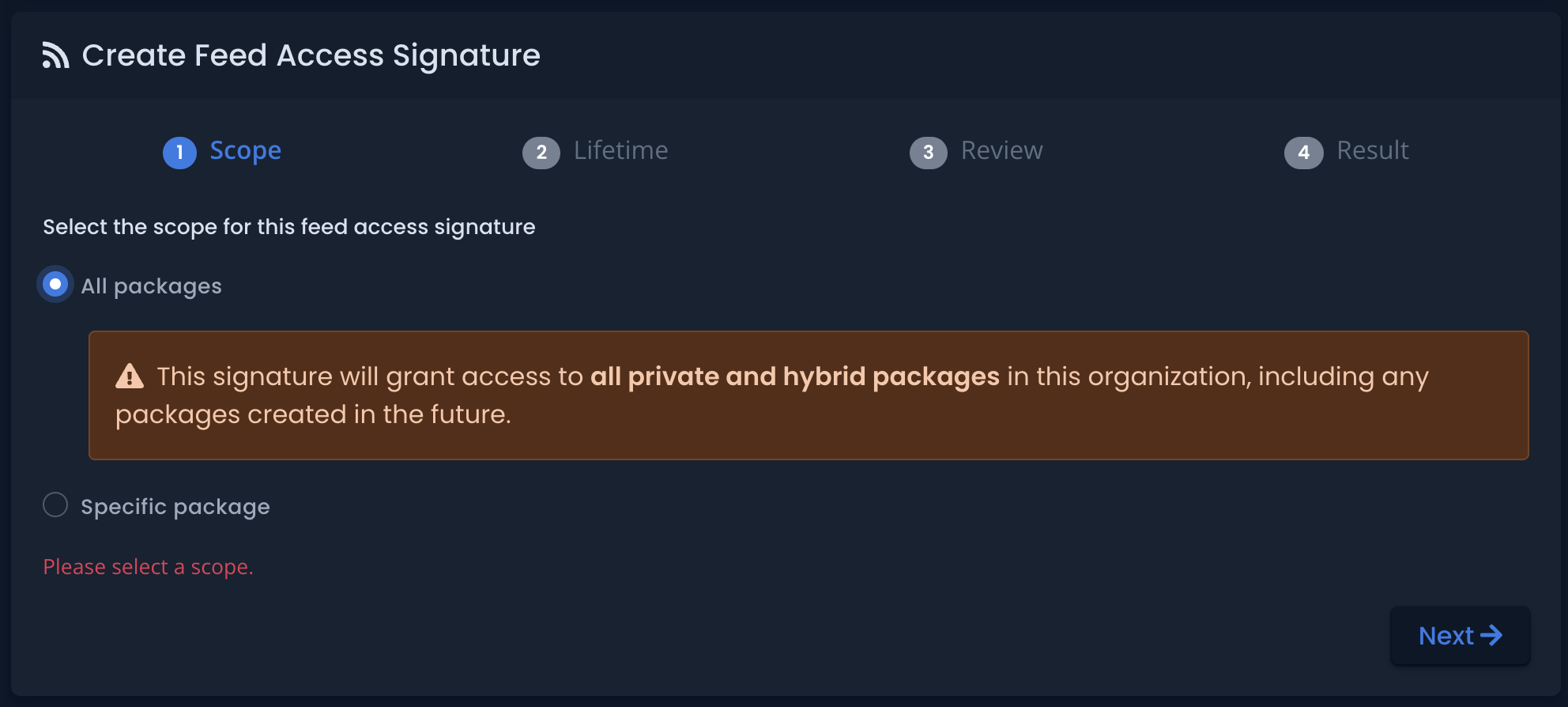
Choose which packages the signature covers:
- All packages — the signature covers all packages currently in your organization, as well as any packages created in the future.
- Selected package — restrict the signature to one specific package you choose from the list.
Select the scope that matches your intended use. A broad scope is convenient but grants feed access to the release notes ofall packages; a narrower scope limits exposure if the feed URL is ever compromised.
Click the image to enlarge
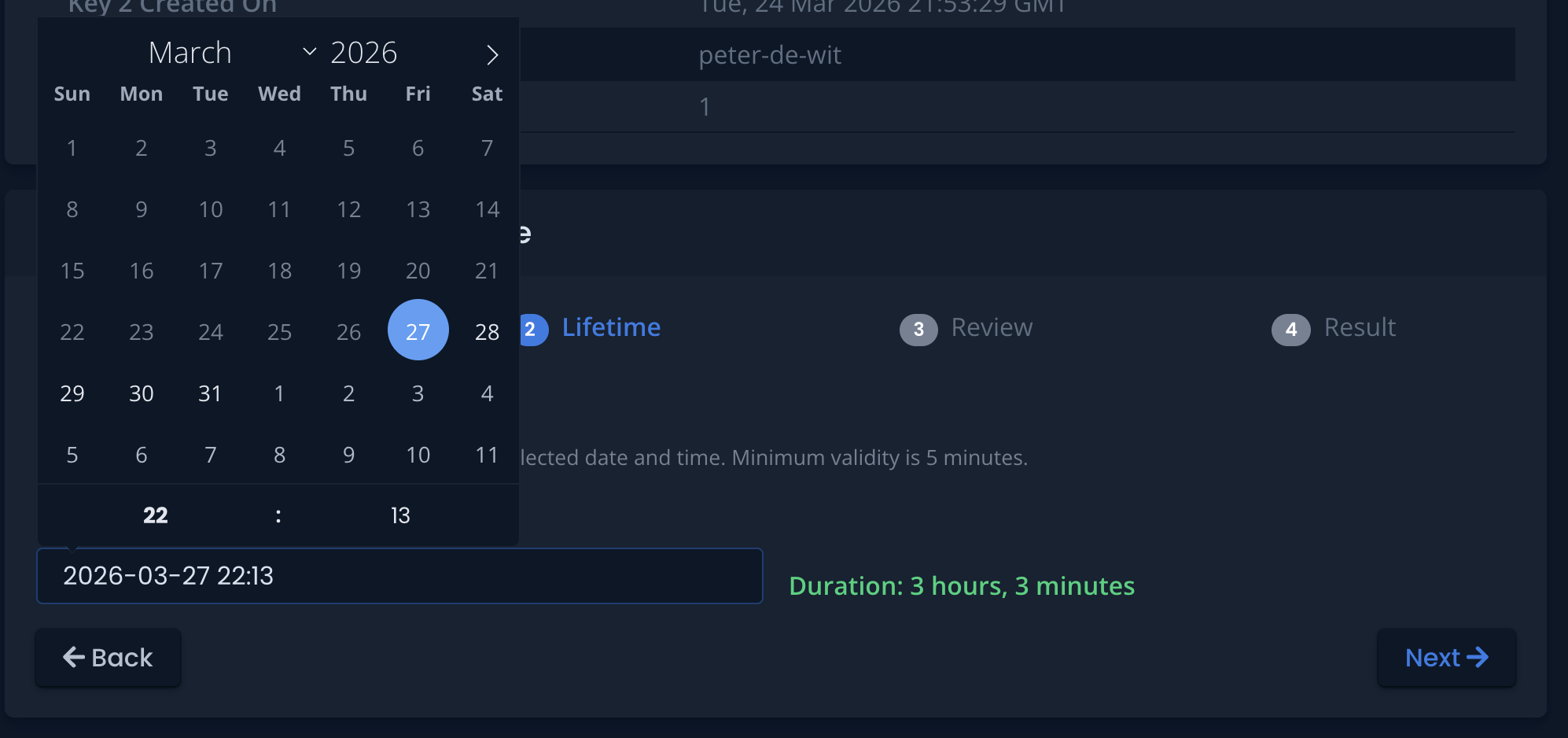
Wizard Step 2 — Lifetime
Select how long the access signature remains valid. Once the signature expires, the feed URL associated with it will stop returning updates. Choose a lifetime that reflects how long you expect to need access, and plan to renew or replace the signature before it expires if ongoing access is required.
Click the image to enlarge
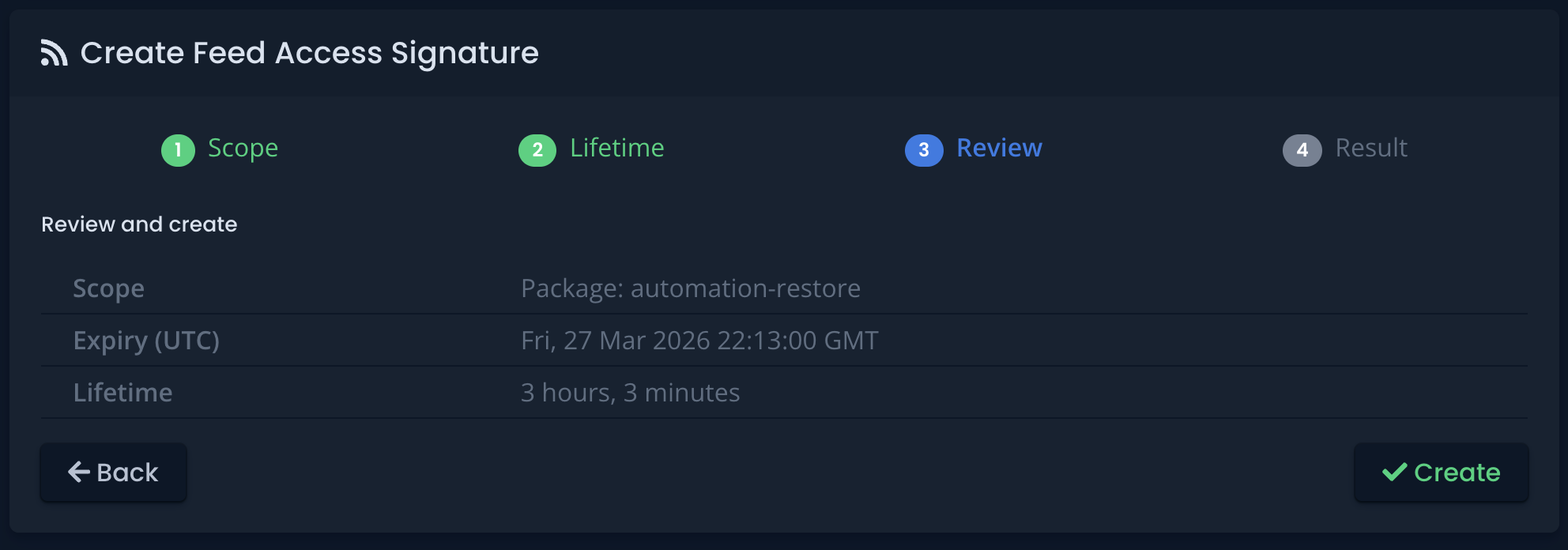
Wizard Step 3 — Review
Click the image to enlarge
Review your chosen scope and lifetime before confirming. No changes are made until you proceed past this step. If anything needs adjusting, go back and update your selections.
Wizard Step 4 — Result
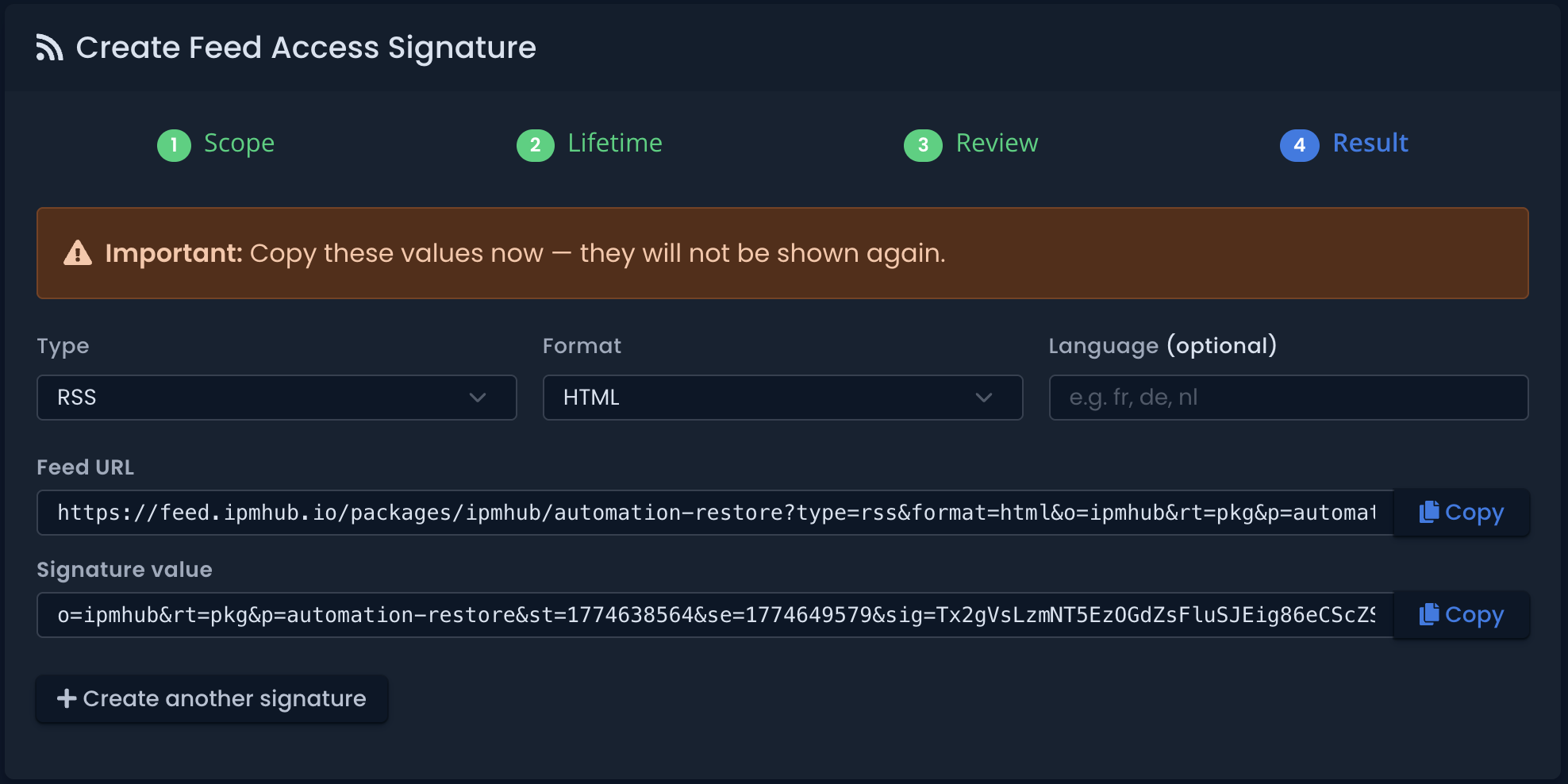
After confirmation, your Feed URL is displayed. This is the URL you use to subscribe to package version updates.
Click the image to enlarge
On the result page you can customise the feed output before copying the URL:
| Option | Details |
|---|---|
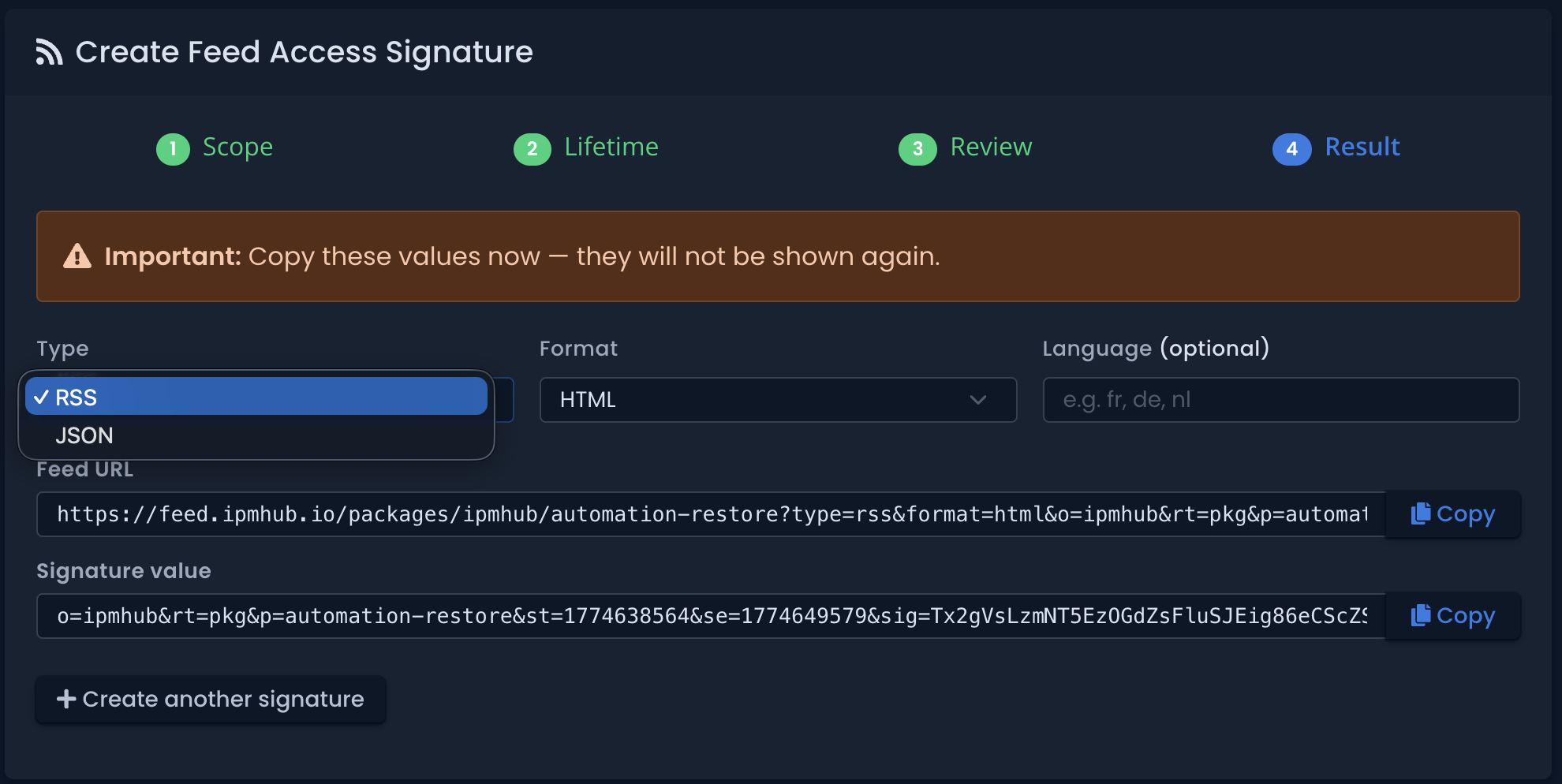
| Type | RSS (default) or JSON — determines the response format (RSS XML or JSON) |
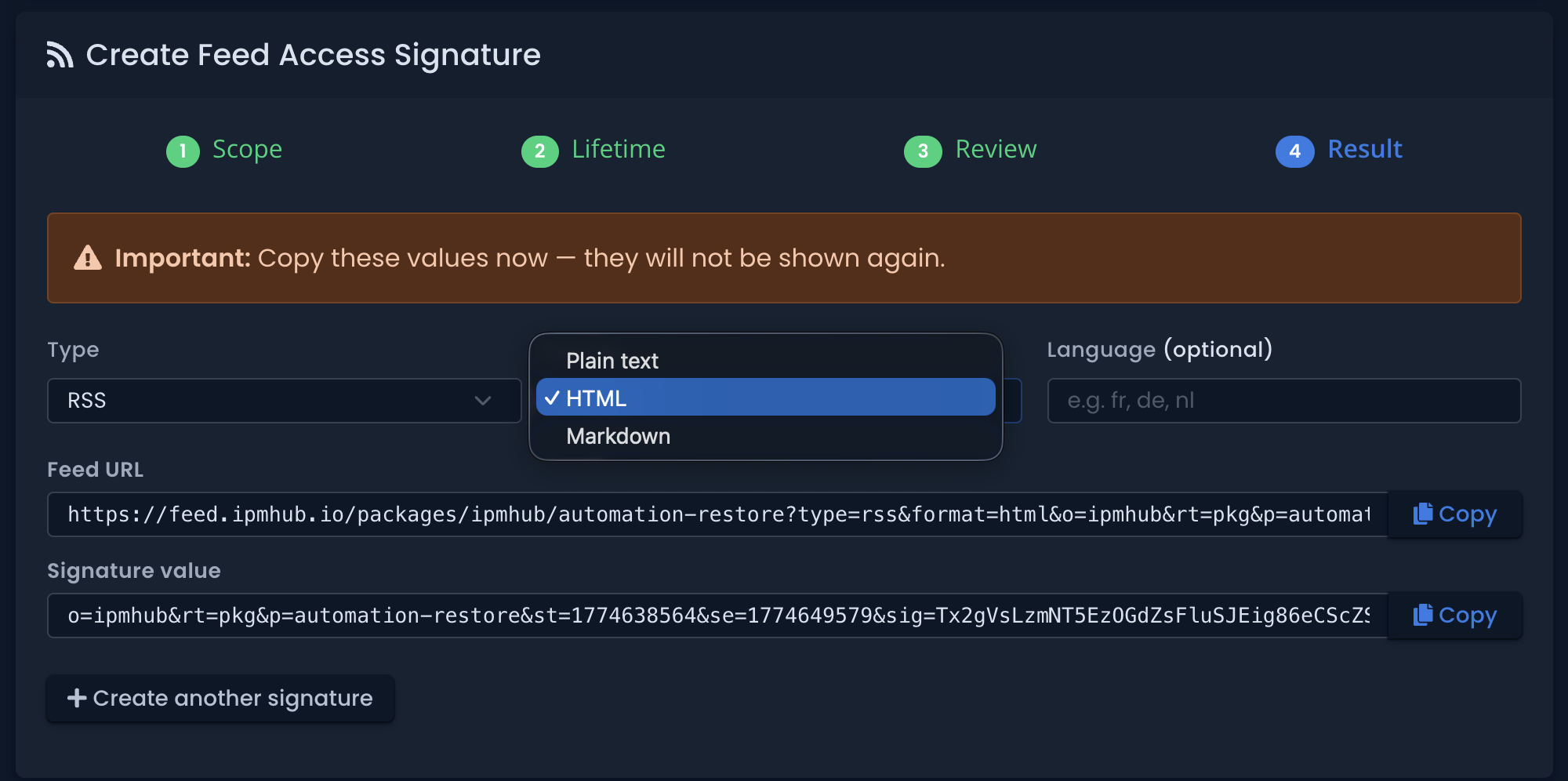
| Format | HTML (default), Markdown, or Plain text — controls how the content is rendered within the feed entries |
| Language | Provide a language code (for example, fr or de) to have release notes translated into that language |
Click the image to enlarge
The Type field determines how the feed data is structured when you retrieve it (RSS XML format or JSON format), while the Format field controls how the individual package update content is rendered within each feed entry.
Click the image to enlarge
Using the Feed URL
The feed URL is a standard HTTP endpoint that returns package version update notifications. The Type parameter determines whether you receive the data as RSS XML or JSON, while the Format parameter controls how the content within each entry is rendered (HTML, Markdown, or plain text). You can use the feed URL in the following ways:
- Feed readers — add the URL to any RSS reader (when using RSS type) or JSON feed client (when using JSON type).
- Automation — poll the URL on a schedule to detect new package versions and trigger downstream processes such as notifications, builds, or deployments.
- Webhooks and integrations — use the URL with any tool that can consume an HTTP feed.
Public Packages
For public packages, a feed URL can be obtained without creating an access signature. The feed is openly accessible, which makes it straightforward to subscribe without any setup.
If you want to customise the feed Type (RSS or JSON) or Format (HTML, Markdown, or plain text) you can do so in the URL.
If you want release notes to be translated into another language, you must create an access signature. On the result page of the wizard, specify the desired Type, Format, and optional language code. The feed URL generated will return data according to your selected options.
Examples
Stay informed with a feed reader
Add your feed URL to any RSS-compatible reader such as Feedly, NetNewsWire, or Outlook. Each time a new package version is published, an entry appears in your reader with the release notes. This is the simplest way to keep up with package updates without logging into the portal.
If you manage packages for multiple clients, create a separate access signature per client scoped to their packages, and add each feed URL as its own channel in your reader.
Send package update notifications to Teams or Slack
Most automation platforms (Power Automate, Zapier, Make) can poll an RSS or JSON feed and post a message to a Teams channel or Slack workspace when a new entry appears.
Set up a flow that polls your feed URL on a schedule, detects new entries, and posts the package name, version, and release notes to the relevant channel. Teams can then decide whether to act on the update.
This works well for MSPs that want to keep client-facing engineers informed without manual communication overhead.
Share package updates with external consumers
If you publish packages that other organizations consume, you can give each consumer their own feed URL scoped to the packages they use. They subscribe independently, using whatever tooling they prefer, without needing access to your IPMHub portal.
When you publish a new version, their feed updates automatically. Use access signature lifetimes to control how long external access remains valid.
Deliver release notes in your client’s language
When creating an access signature, you can specify a language code on the result page. The feed will return release notes translated into that language for every entry.
This is useful when you manage infrastructure for clients in different regions. You write release notes once in your own language, and each client’s feed delivers them in theirs.