On this page
delete
Deleting Groups
Remove groups from your organization
Deleting a Group
Deleting a group removes the group container but does not delete the entities that were members of the group.
Accessing Delete Function
There are two ways to delete a group:
Option 1: From the Group Details
- Open the group by clicking on its name
- In “Quick Actions”, click “Edit Properties”
- Click the “Delete Group” button at the bottom of the properties panel
Option 2: From the Groups Table
In the groups table, click the gear icon in the “Actions” column, then select delete from the options.
Deletion Process
-
Click “Delete Group”
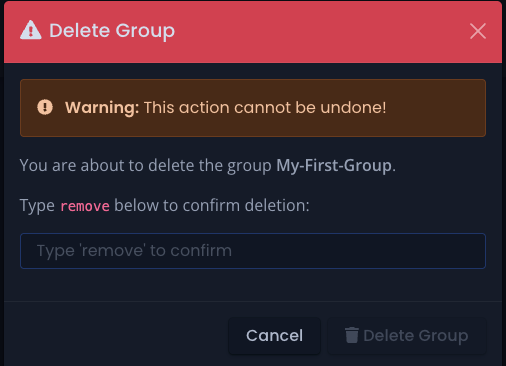
Click the image to enlarge
-
Type
removein the confirmation field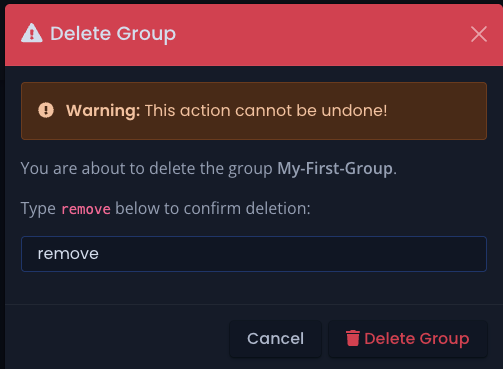
Click the image to enlarge
-
Click “Remove” to confirm deletion
This action cannot be reversed. Once a group is deleted, it cannot be recovered.
What Happens When You Delete a Group
Members Are Preserved
All entities that were members of the group remain in your organization:
- Users retain their accounts
- Client secrets remain active
- Nested groups continue to exist
Permissions Are Removed
Members lose the permissions granted by this specific group:
- If they have no other permissions, they lose access to organization resources
- If they belong to other groups or have direct permissions, those remain active
- Nested groups’ members lose permissions inherited through this group
Before Deleting
Consider these questions before deleting a group:
- Do members need continued access? Verify that users and client secrets have appropriate permissions through other means
- Are there nested groups? Remember that members of nested groups will also lose the inherited permissions
After Deletion
After deleting a group:
- The group name becomes available for reuse
- Audit logs will still show the deleted group’s activities
- You’ll need to recreate the group and reassign members if you need it again
If you accidentally delete a group, you’ll need to recreate it and manually add all members again. There is no undo function.