Sync from Production
Copy package metadata from production to sandbox environments
Introduction
The Sync from Production feature lets you copy package metadata from your production organization to your sandbox environment. This creates empty package shells in your sandbox that match your production packages, letting you experiment with existing package structures.
What Gets Synced
When you sync from production, only package metadata is copied:
- Package name
- Package description
- Package type (Bicep, Terraform, etc.)
- License information
- Visibility settings
- Project URL
What Doesn’t Get Synced
- Package versions
- Package content/files
- Version history
- Download statistics
- Tracked workspaces
The synced packages are created empty - you can then publish versions to them in your sandbox environment.
Requirements
To use Sync from Production, you need:
- Reader role or higher on the production organization
- Contributor role or higher on the sandbox organization
- An active sandbox organization for your production org
Using Sync from Production
Step-by-Step Process
-
Navigate to your sandbox organization in the portal
-
Go to the package overview page

Click the image to enlarge
-
Click the “Sync from Prod” button
-
Select the packages you want to sync
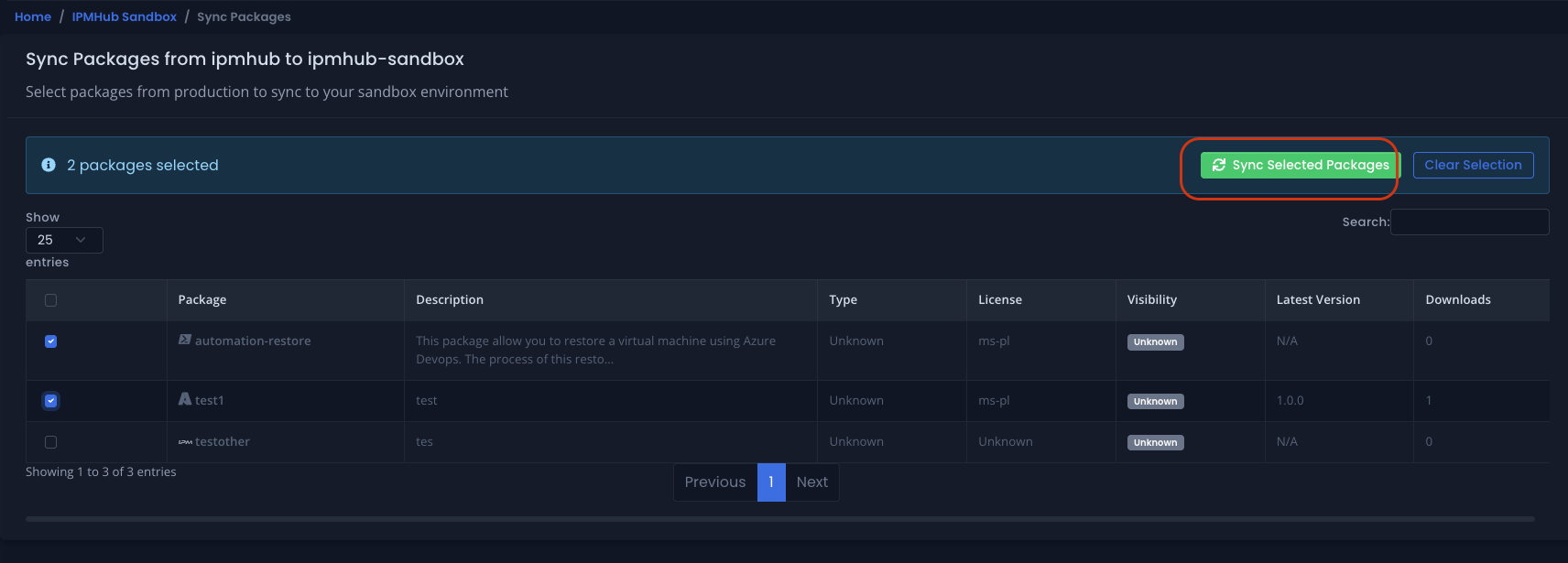
Click the image to enlarge
-
Confirm if you want to change the package visibility settings to private
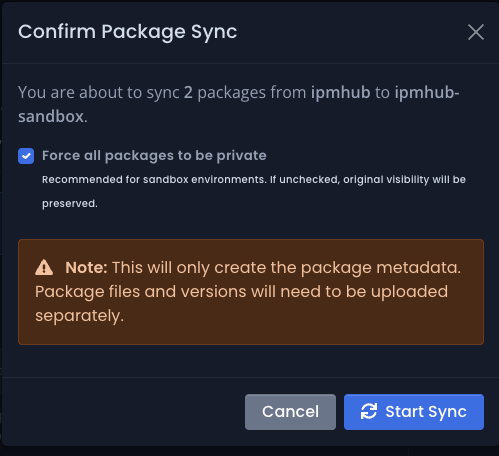
Click the image to enlarge
-
Click “Start Sync”
-
Wait for the sync process to complete, click Reload packages to see the synced packages.
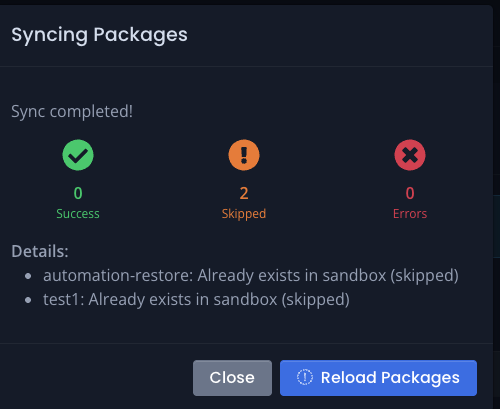
Click the image to enlarge
The system creates the selected packages in your sandbox with their metadata intact but no versions.
Selective Sync
You can choose which packages to sync:
- Select specific packages from the list
- Sync all packages at once
- Re-sync individual packages as needed
Overwrite Visibility Settings
When syncing packages, you can choose to overwrite the visibility settings:
- If enabled, the synced packages will be set to private.
- If disabled, the synced packages will inherit their existing visibility settings in the sandbox.
After Syncing
Once packages are synced:
- They appear in your sandbox organization with no versions
- You can publish versions using
ipm publish - Package metadata matches the production version
- You can modify settings in sandbox without affecting production
Workflow Examples
Example 1: Update Testing
# 1. Sync package metadata from production to sandbox (in portal)
# 2. In your sandbox workspace
ipm init
ipm add --package mycompany-sandbox/my-package

# 3. Make changes to the package
# (edit files)

# 4. Publish test version
ipm publish --package mycompany-sandbox/my-package --version 2.0.0 --folder ./

# 5. Test the changes
# (validate functionality)

# 6. If successful, publish to production
ipm publish --package mycompany/my-package --version 2.0.0 --folder ./
Example 2: Training Environment
# 1. Organization admin syncs production packages (in portal)
# 2. Trainees practice publishing
ipm login
ipm publish --package mycompany-sandbox/training-package --version 1.0.0 --folder ./my-module

# 3. Practice adding packages
ipm add --package mycompany-sandbox/training-package

# 4. No risk to production packages
Best Practices
Regular Syncing
- Keep sandbox structures aligned with current production
- Re-sync after major production package reorganizations
Troubleshooting
Sync Not Available
If you can’t see the sync option:
- Verify you have Reader role or higher on production
- Confirm you have Contributor role or higher on sandbox
- Check that you are in the package overview of the Sandbox organization
- Validate that both organizations have a valid subscription