CSV Upload
Introduction
The CSV bulk import feature lets you create multiple packages at once by uploading a CSV file. This is useful when you need to create many packages quickly or migrate packages from another system.
Requirements
- Maximum 100 packages per CSV file
- Contributor role or higher in the target organization(s)
- CSV must be semicolon-separated (
;)
CSV Format
Required Columns
Your CSV must include these columns:
Owner- Organization name that will own the packagePackageName- Name of the package (a-z, 0-9, dash, underscore, max 64 chars)DescriptionLanguage- Language code for the description (e.g., en-US, nl, de)PackageType- Type of package contentPackageLicense- License under which the package is publishedPackageVisibility- Who can see and access the package
Optional Columns
PackageDescription- Description of the packageProjectURL- Link to project homepage or documentation
Valid Values
PackageType
BicepTerraformAnsiblePowerShellPythonOther
PackageLicense
MIT- MIT Licensems-pl- Microsoft Public Licenseapache-2.0- Apache License 2.0GPL2- GPL2GPL3- GPL3UnknownOther
PackageVisibility
public- Visible and downloadable by anyonehybrid- Visible in search but requires authorization to downloadprivate- Only visible to authorized users
Sample CSV Template
Download the sample CSV template from the bulk import page to see the correct format.
Example CSV content:
Owner;PackageName;PackageDescription;DescriptionLanguage;PackageType;PackageLicense;PackageVisibility;ProjectURL
mycompany;network-module;Virtual network Bicep module;en-US;Bicep;MIT;public;https://github.com/mycompany/modules
mycompany;storage-module;Storage account module;en-US;Bicep;MIT;private;
anotherorg;terraform-vpc;VPC module for AWS;en-US;Terraform;apache-2.0;hybrid;https://docs.example.com
Using Bulk Import
-
Go to “New Package” in the side menu
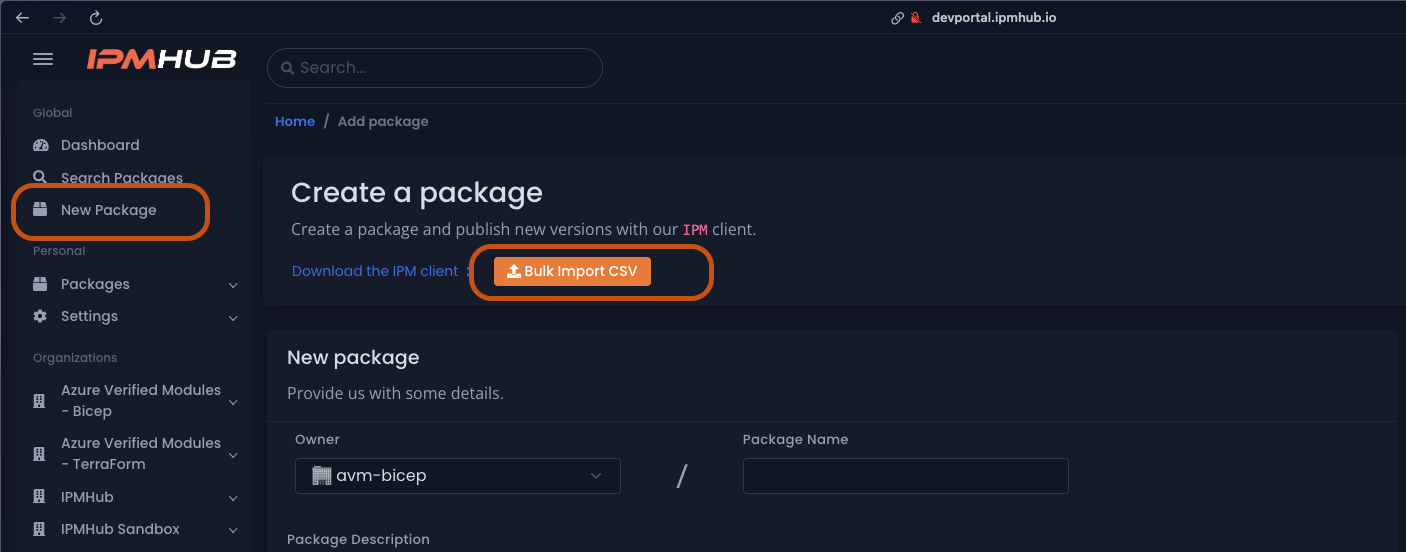
Click the image to enlarge
-
Click the orange “Bulk Import CSV” button, or navigate directly to https://ipmhub.io/bulk-import
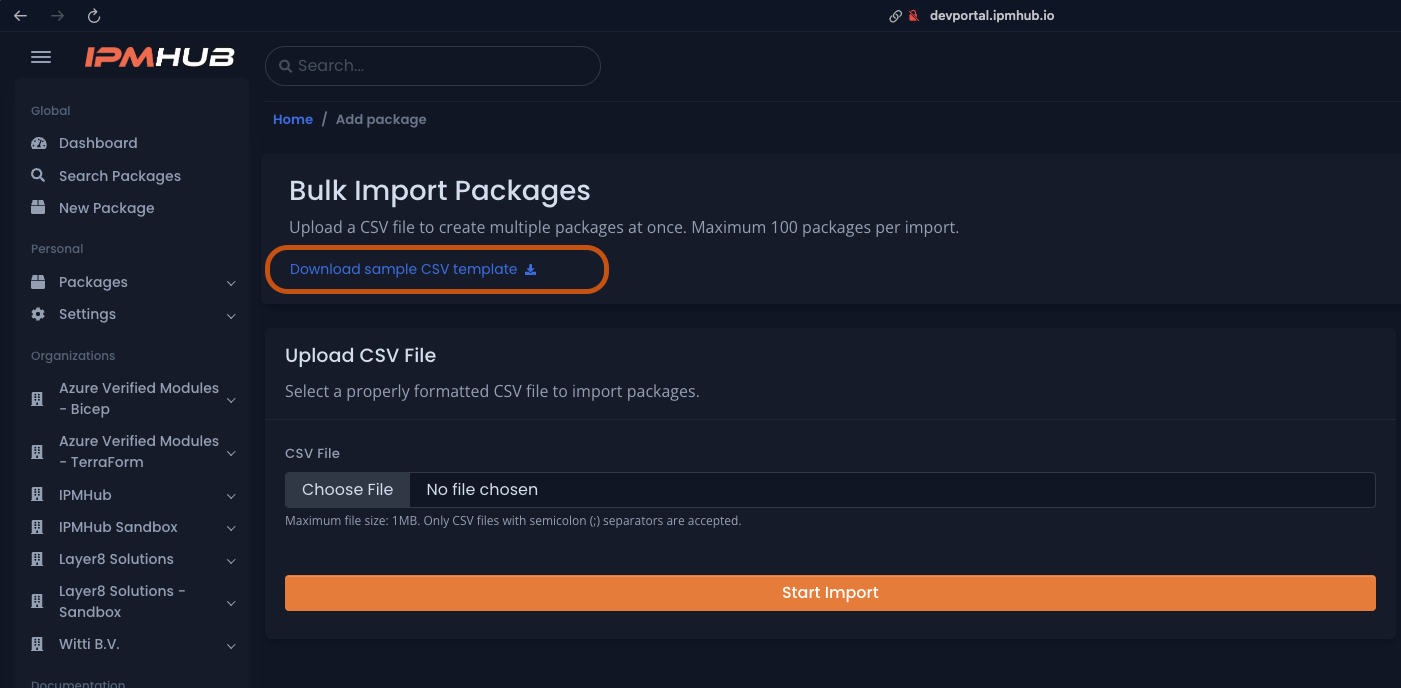
Click the image to enlarge
-
Select your CSV file

Click the image to enlarge
-
Click “Start Import”
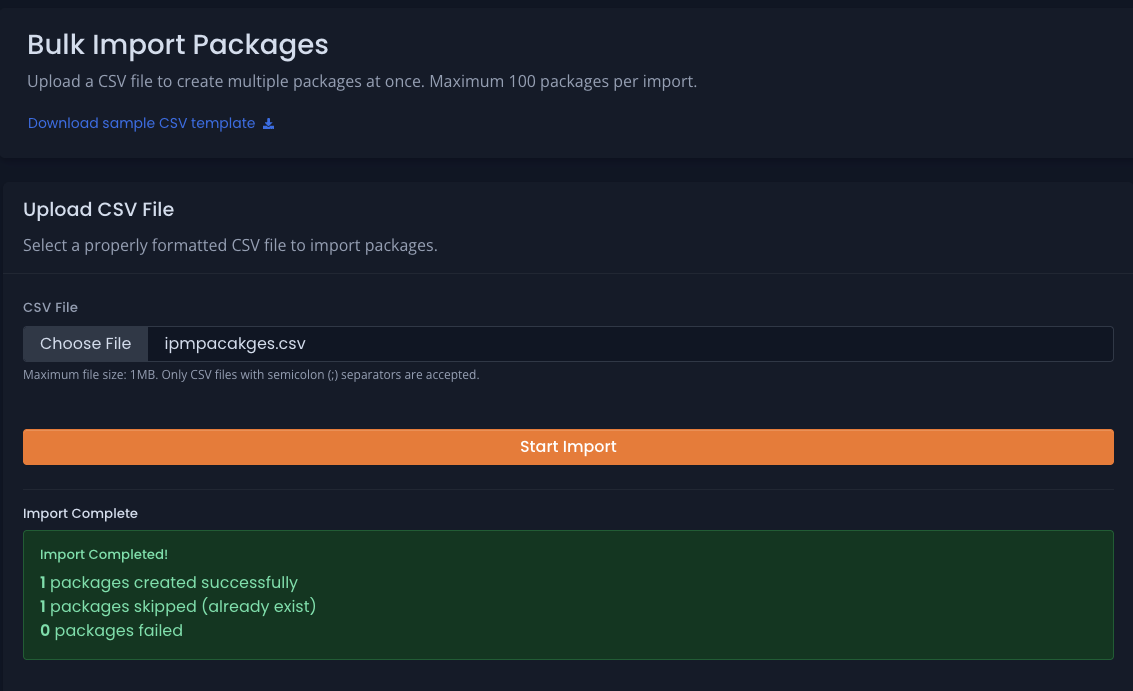
Click the image to enlarge
The system processes each row:
- Creates packages that don’t exist yet
- Skips packages that already exist
- Continues processing even if individual packages fail
Important Notes
- Existing packages will be skipped - the import won’t update or overwrite them
- You can create packages across multiple organizations in a single CSV if you have contributor rights to all of them
- Invalid package names or missing required fields will cause that package to be skipped
- The import continues processing remaining packages even if some fail
Validation Rules
Package names must follow these rules:
- Only lowercase letters (a-z), numbers (0-9), dashes (-), and underscores (_)
- Maximum 64 characters
- Cannot be empty
Organization names (Owner field):
- Must be an organization you have contributor access to
- Maximum 30 characters (38 characters for sandbox organizations)
Common Issues
Package skipped during import:
- Package already exists
- Invalid package name format
- You don’t have contributor rights to the organization
- Required field is missing or empty
- Invalid value for PackageType, PackageLicense, or PackageVisibility
CSV file rejected:
- More than 100 packages in the file
- Incorrect delimiter (must use semicolon
;) - Missing required columns
After Import
After the import completes, you’ll see a summary showing:
- Total packages processed
- Packages created successfully
- Packages skipped (with reasons)
You can then use ipm publish to upload versions to your newly created packages.