Malware Scanning
Automatic malware scanning of published package versions
Introduction
Every package version published to IPMHub is automatically scanned for malicious content. This happens in the background after ipm publish completes. The version is unavailable for download until the scan finishes.
Scan Process
Scanning runs as a background process triggered by the upload. It operates independently of the IPM client – once publish returns, the scan is already queued.
The scan can take up to 5 minutes to complete. During this time, the version is unlisted and cannot be downloaded by anyone, including the publisher.
Checking Scan Status
Open the package in the portal and navigate to the version overview. Each version displays a scan status indicator.
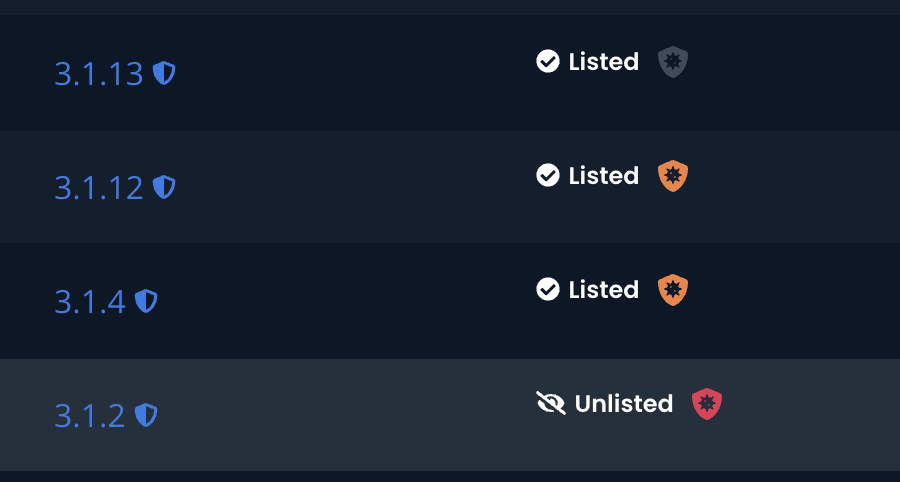
Click the image to enlarge
Scan States
| Status | Description |
|---|---|
| Awaiting Scan | Version is queued. Download is blocked until scanning completes. |
| Unknown | Scan status could not be determined. Contact support if this persists. |
| Scan Failed | The scanner encountered an error. Contact support if this persists. |
| No Threats Found | No threats detected. Version is available for download. |
| Malicious | Malicious content detected. Version is permanently blocked. Contact the package owner. |
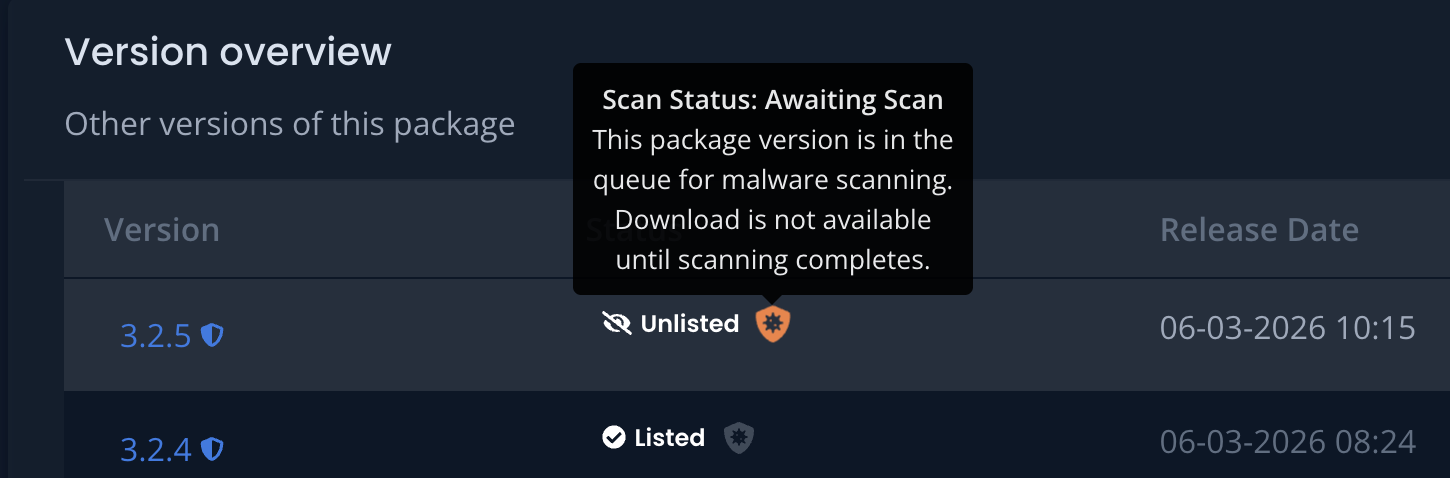
Click the image to enlarge
Impact on Publishing Workflows
Manual Publish
After running ipm publish, the version is visible in the portal immediately but shows “Awaiting Scan”. It becomes downloadable once the scan resolves to a clean state.
Automated Pipelines
If your pipeline installs or uses the newly published version immediately after publish, add a delay or polling step to wait for scan completion. A version that is still scanning will not be downloadable, which causes ipm add to fail.
Example approach in a pipeline:
ipm publish --package myorg/my-module --version 1.2.0 --folder ./

# Wait for scan to complete before consuming the version
sleep 300

ipm add --package myorg/my-module --version 1.2.0
Malicious Versions
If a version is flagged as malicious it is permanently blocked. The version remains visible in the portal but cannot be downloaded. To resolve this:
- Review the package contents for any unexpected or injected files.
- Publish a clean version with a new version number.
- Contact support if you believe the result is a false positive.
Scan Failure Reasons
When a version shows “Scan Failed” or remains unscanned, the cause is usually one of the following:
| Cause | Description |
|---|---|
| Internal service error | An unexpected error occurred during the scan. Re-publishing the same version typically resolves this. |
| Scan timed out | The scan exceeded the time limit. This can happen with large or heavily nested archives. |
| Service throttling | The scan request was temporarily rate-limited. Re-publishing after a short wait usually succeeds. |
| Service delayed | The scan is delayed due to system load. This is a transient state; the scan will eventually complete. |
Frequently Asked Questions
Why is my version not showing up right after publish? The version is unlisted during scanning. It appears in the portal but cannot be downloaded. Wait for the scan to complete.
How long does scanning take? Up to 5 minutes in most cases. If a version stays in “Awaiting Scan” longer than that, contact support.
Can I bypass scanning? No. Scanning runs automatically for every published version and cannot be disabled.
What happens if the scan fails? The version remains blocked. Contact support to investigate the error.
I got a false positive – what do I do? Contact support with your package name and version. We will investigate.